 Pie
PieGet started
Create your account, connect your bank, and choose what to share with friends.
Create your account
Sign up
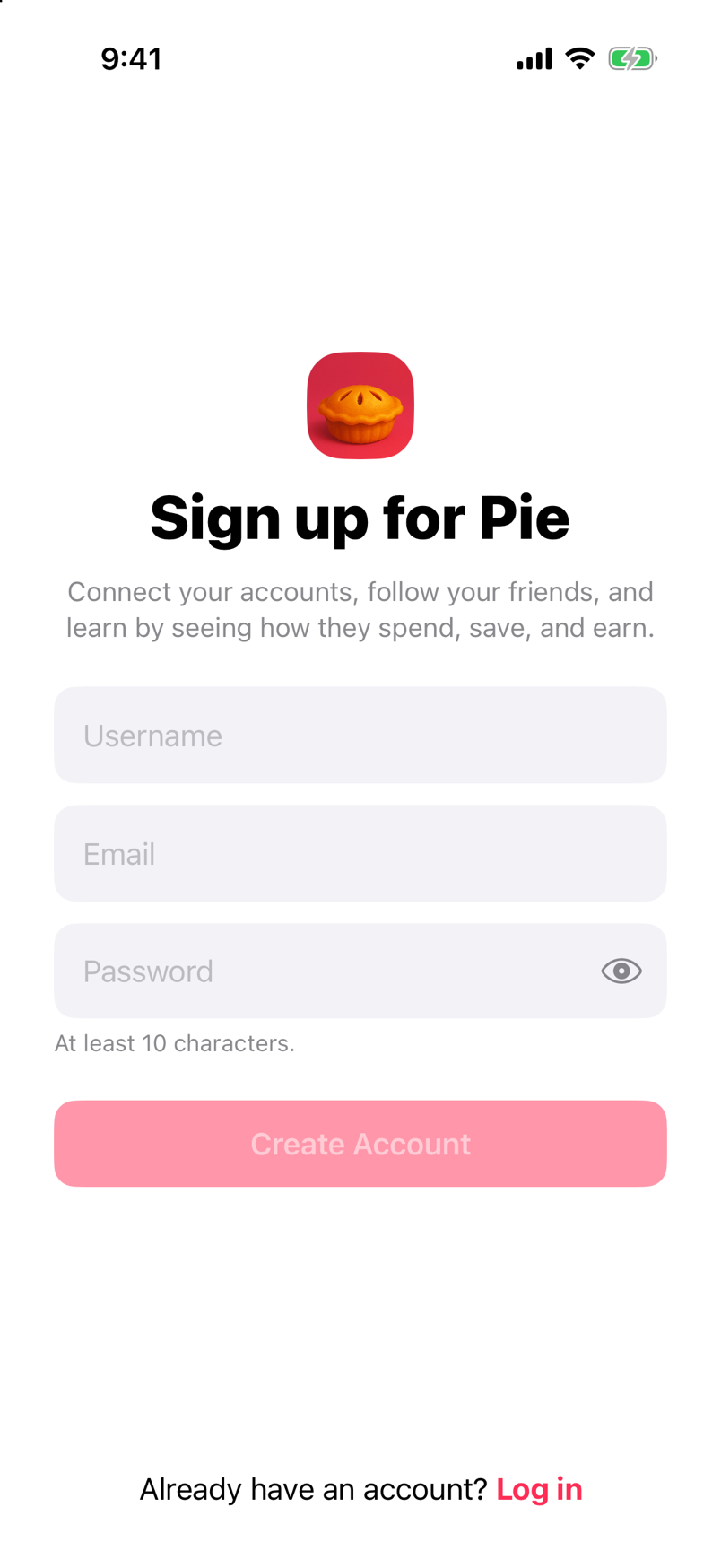
- Download Pie from the App Store, open it, and tap Sign up.
- Choose a username, enter your email, and create a password. Tap Create Account.
- Enter the 6-digit code sent to your email.
- Read the terms, check the box, and tap I agree & continue.
- Add your first name, last name, and a photo your friends will recognize. A photo is required to finish this step.
Choose what to share
During sign-up, choose whether to share your finances with friends. If you choose Share finances with friends, your income, spending, transaction lists, and personal account balances start as Visible to friends. You can change what friends see later from your Profile.
Connect your bank
- Tap Connect with Plaid.
- Find your bank and sign in to it.
- Pick the accounts you want in Pie.
Plaid connects your accounts with read-only access. Pie can read your financial information, but cannot move money through this connection.
Verify your phone number
- Enter your phone number and tap Send code.
- Enter the code Pie texts you.
Pie currently supports US numbers. Your number is used for account safety and to help friends find you.
Your Profile
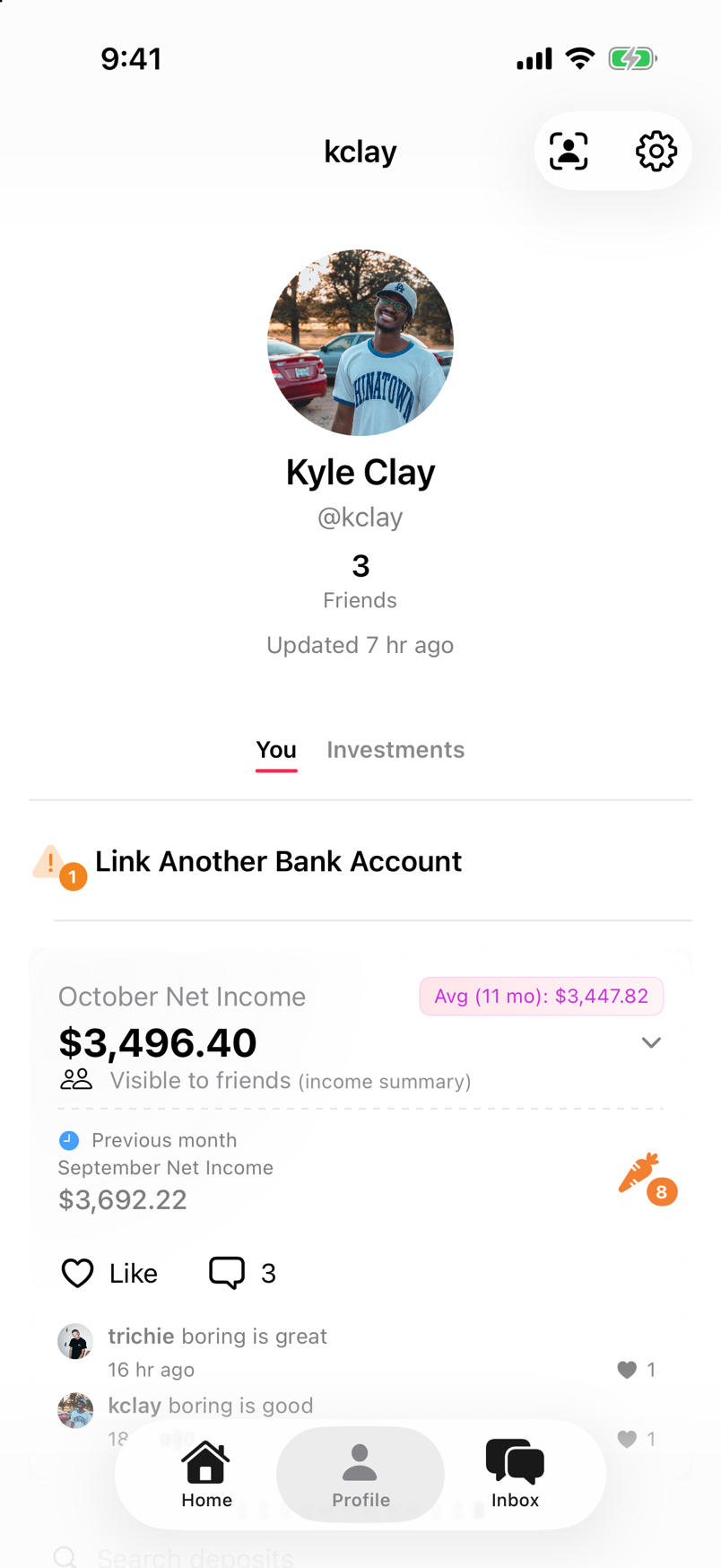
Your Profile shows your income, spending, and balances from the accounts you linked.
- Choose who sees your numbers. Below each financial item, tap its audience picker, labeled Visible to friends or Hidden from friends, to choose Friends or Only me. Sharing controls explains the sharing choices.
- Add another bank. Tap Link Another Bank Account, above your income.
- Open Settings. Tap the gear in the top-right corner to edit your profile, manage notifications, review privacy and security settings, or get help.
- Check what friends can see. Tap the viewfinder icon beside the gear to View profile as friend. Review what’s visible, then return to your Profile to change a sharing choice.
This guide describes Pie app version 1.0.4.