 Pie
PieMake a budget
Plan for bills, savings, and everyday spending. Costs you track in My Pies count too, using your share rather than the full bill.
Budgeting together
We’re working toward shared budgets so you can plan together in Pie. For now, the plan you create in Budget isn’t shared with friends or your significant other.
When you both share income and spending, open Profile → Together to see your combined totals, spending by category, and how your income compares with your spending. Your significant other can also see the transactions you share through Partner Sharing and account balances set to Friends. Choose what to share.
Start your plan
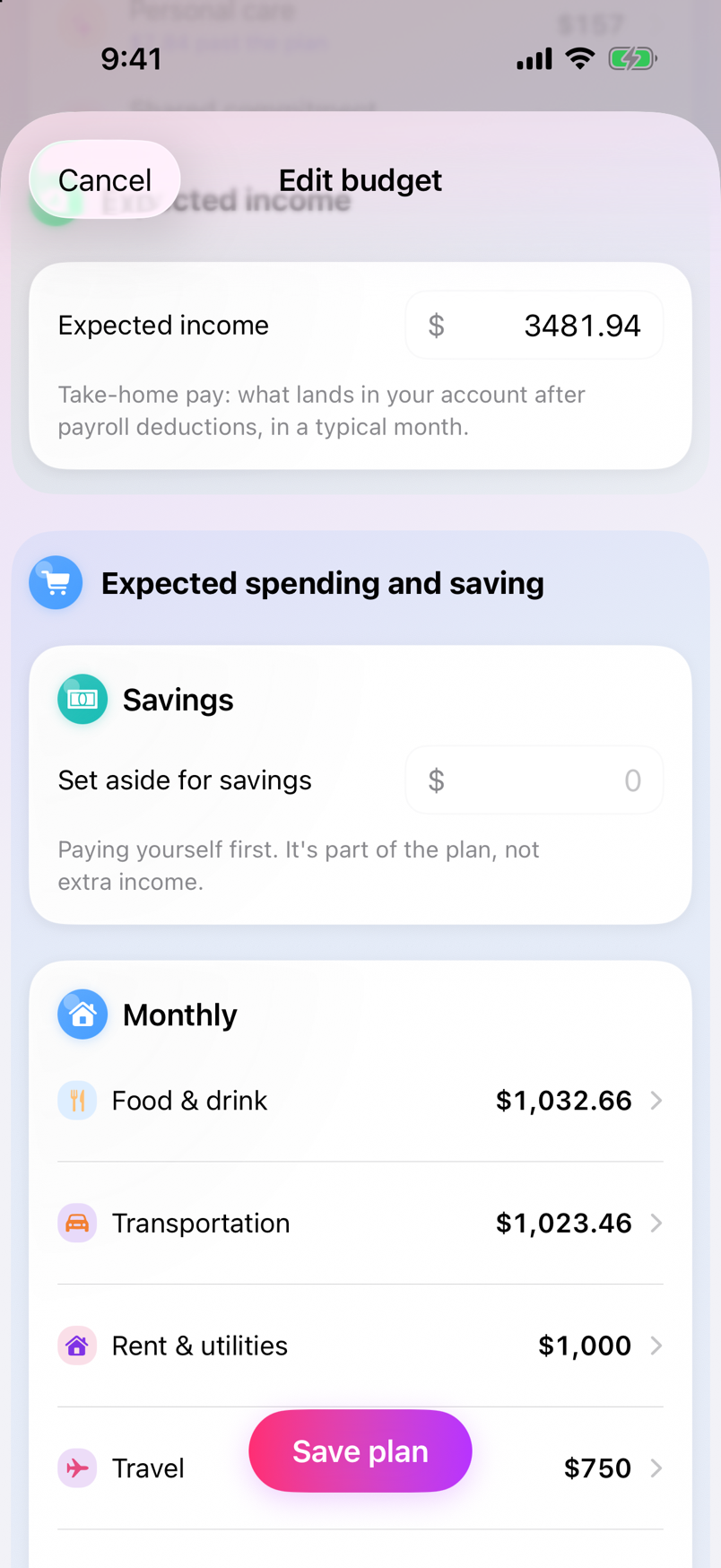
- Open the Profile tab and scroll to Budget, right under My Pies.
- Tap Set up budget. If Pie offers a draft from your past months, review and adjust it.
- Check Expected income: the take-home pay you expect to receive after payroll deductions.
- Choose how much to set aside for Savings.
- Under Monthly, add regular costs such as rent, groceries, and subscriptions. Under Non-monthly, add costs that come up less often, such as gifts, trips, or vet visits.
- Set your Monthly cushion and tap Start my plan.
Your cushion covers spending without its own line in the plan, such as a last-minute dinner with friends or picking up a birthday cake to surprise someone you love.
Plan for shared costs
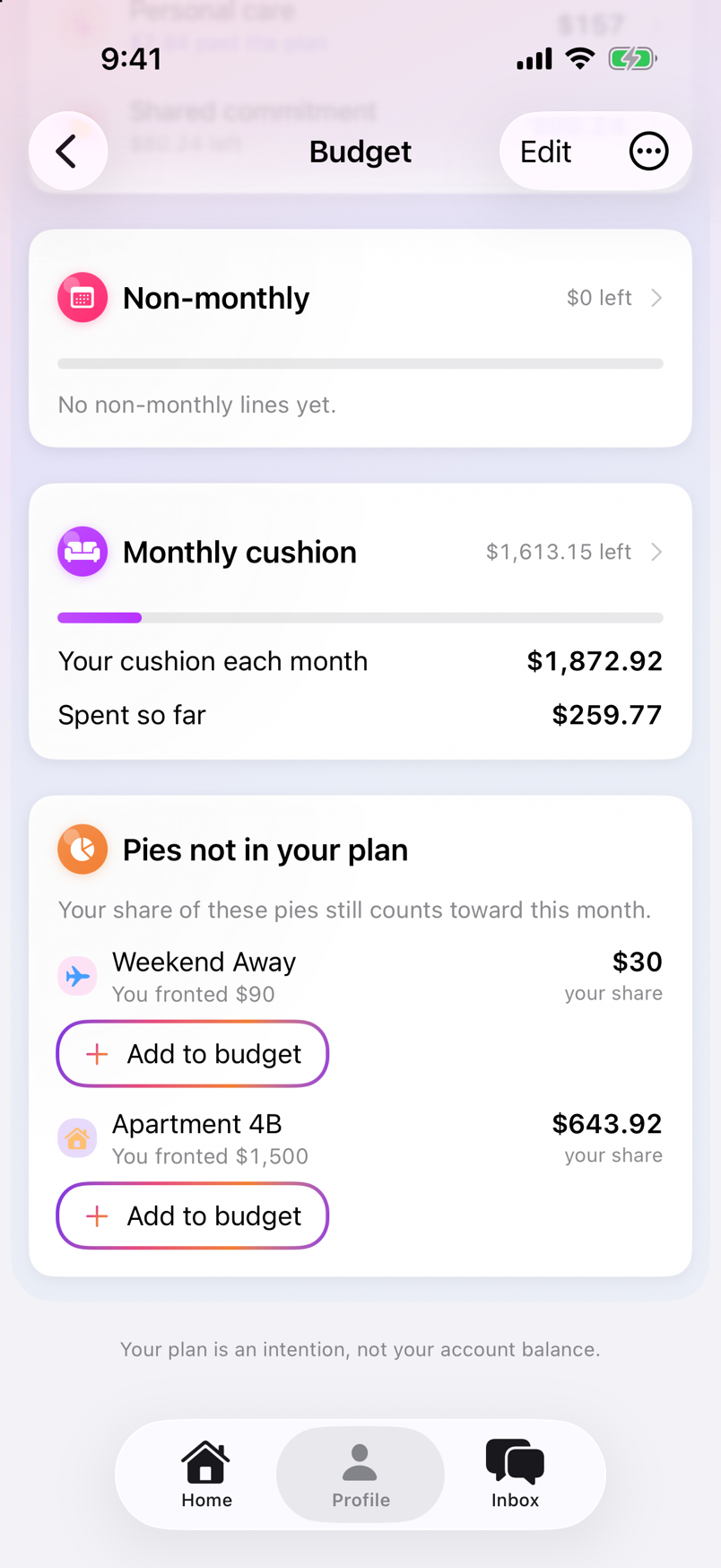
For a trip or rent with roommates, your budget counts your share of the group's costs from My Pies.
- In Budget, tap Edit, then Add a line.
- Under What it covers, choose A pie, then select your group by name.
- Set the planned amount for your share and tap Done.
- Tap Save plan to save your budget.
Your share already counts as spending in your budget. To plan for it, tap Add to budget under Pies not in your plan.
To review the shared costs, tap that budget line, then the group's name in the details.
Check in and adjust your plan
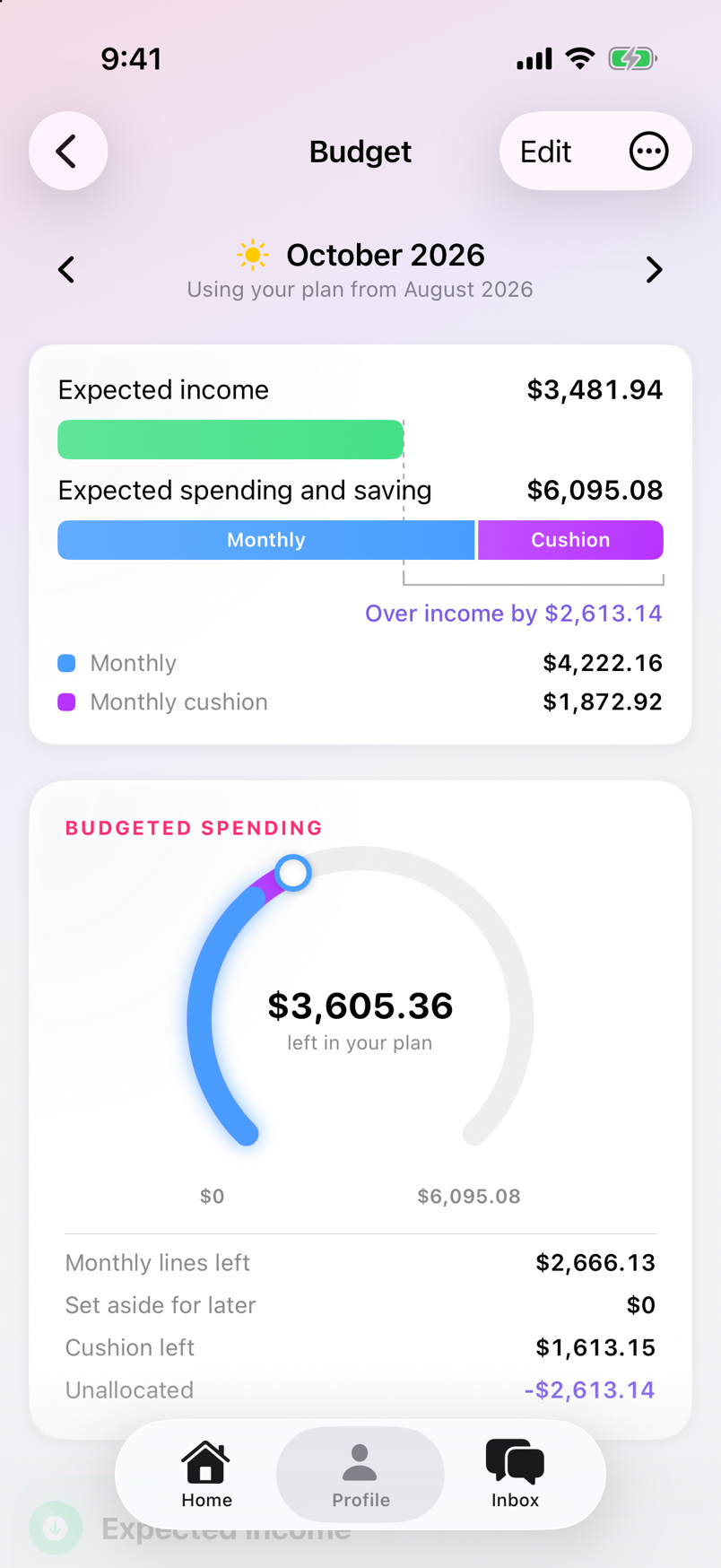
Open Budget during the month to see what's left in your plan. Tap a line to see the spending behind it. If your plans change, tap Edit, update the amounts, then Save plan. When prompted, choose which months the changes apply to.
Money left in your plan is a budgeting number, not your bank balance. Find your account balances on Profile.
You’re all set!
You’ve made it through the basics. Now make room for the things you care about, with people you trust. We’re happy you’re here, and we hope you enjoy Pie as much as we do.
This guide describes Pie app version 1.0.4.